Have you ever wished you had clear proof after an unexpected road incident? Installing a dash cam can be your best move to protect yourself and your vehicle.
It’s not just about recording your drives—it’s about peace of mind, safety, and even saving money on insurance. You’ll discover how easy it is to install a dash cam yourself and why it’s a must-have for every driver. Keep reading, and you’ll see how this small device can make a big difference on the road.
Choosing The Right Dash Cam
Dash cams help you record your driving and keep proof of events. Picking the right one means understanding what features and types fit your needs.
This guide covers important points like features, types, and budget to help you choose a dash cam.
Features To Look For
Look for clear video quality so you can see details. Night vision helps in dark conditions. Some dash cams have GPS to track your route.
- High resolution video (1080p or higher)
- Wide-angle lens for better coverage
- Loop recording to save space
- G-sensor to detect crashes
- Parking mode for when parked
Types Of Dash Cams
Dash cams come in different styles. Front-only cameras record just the front view. Dual cameras record front and back. Some models have inside cabin cameras too.
| Type | Description |
| Front Dash Cam | Records road ahead only |
| Dual Dash Cam | Records front and rear views |
| Interior Dash Cam | Monitors inside of the vehicle |
| Wireless Dash Cam | Connects via Wi-Fi to your phone |
Budget Considerations
Dash cams range in price. Basic models cost less but may lack features. Higher-priced models include more options and better video quality.
- Set a maximum budget before shopping
- Compare features within your price range
- Look for good reviews on reliability
- Consider installation costs if needed
- Remember cheaper is not always better
Preparing For Installation
Installing a dash cam helps record your driving for safety and security. Before you start, prepare well to avoid problems during setup.
This guide covers key steps to get ready for installing your dash cam correctly and safely.
Gathering Necessary Tools
Collect all tools before installation to save time. Having the right tools helps secure the dash cam properly.
- Dash cam and mount
- Power cable or hardwire kit
- Trim removal tool
- Microfiber cloth
- Glass cleaner
- Adhesive tape or suction cup (if not included)
- Fuse tap (for hardwire installation)
- Wire clips or zip ties
Selecting The Mounting Location
Choose a spot with a clear view of the road. Avoid placing the dash cam where it blocks your view or airbags.
| Location | Pros | Cons |
| Behind rearview mirror | Hidden, good view | May block mirror adjustment |
| Top center of windshield | Best road view | May distract driver |
| Dashboard | Easy access | Obstructed view, glare issues |
Checking Vehicle Compatibility
Make sure your vehicle supports the dash cam installation method. Some cars have special power outlets or fuse boxes.
Check these points before installing:
- Does your car have a 12V power outlet near the windshield?
- Is the fuse box accessible for hardwiring?
- Are there any dashboard obstructions?
- Does your vehicle warranty allow modifications?
Step-by-step Installation
Installing a dash cam helps record your drives and keep you safe. Follow these steps to set it up properly.
This guide covers mounting the dash cam, routing the power cable, and connecting to the power source.
Mounting The Dash Cam
Choose a clean spot on your windshield near the rearview mirror. This place should not block your view.
Use the adhesive mount or suction cup to fix the dash cam. Press firmly and hold it for a few seconds.
- Clean the glass with an alcohol wipe first.
- Attach the mount to the dash cam if not pre-attached.
- Position the cam to capture the road ahead clearly.
Routing The Power Cable
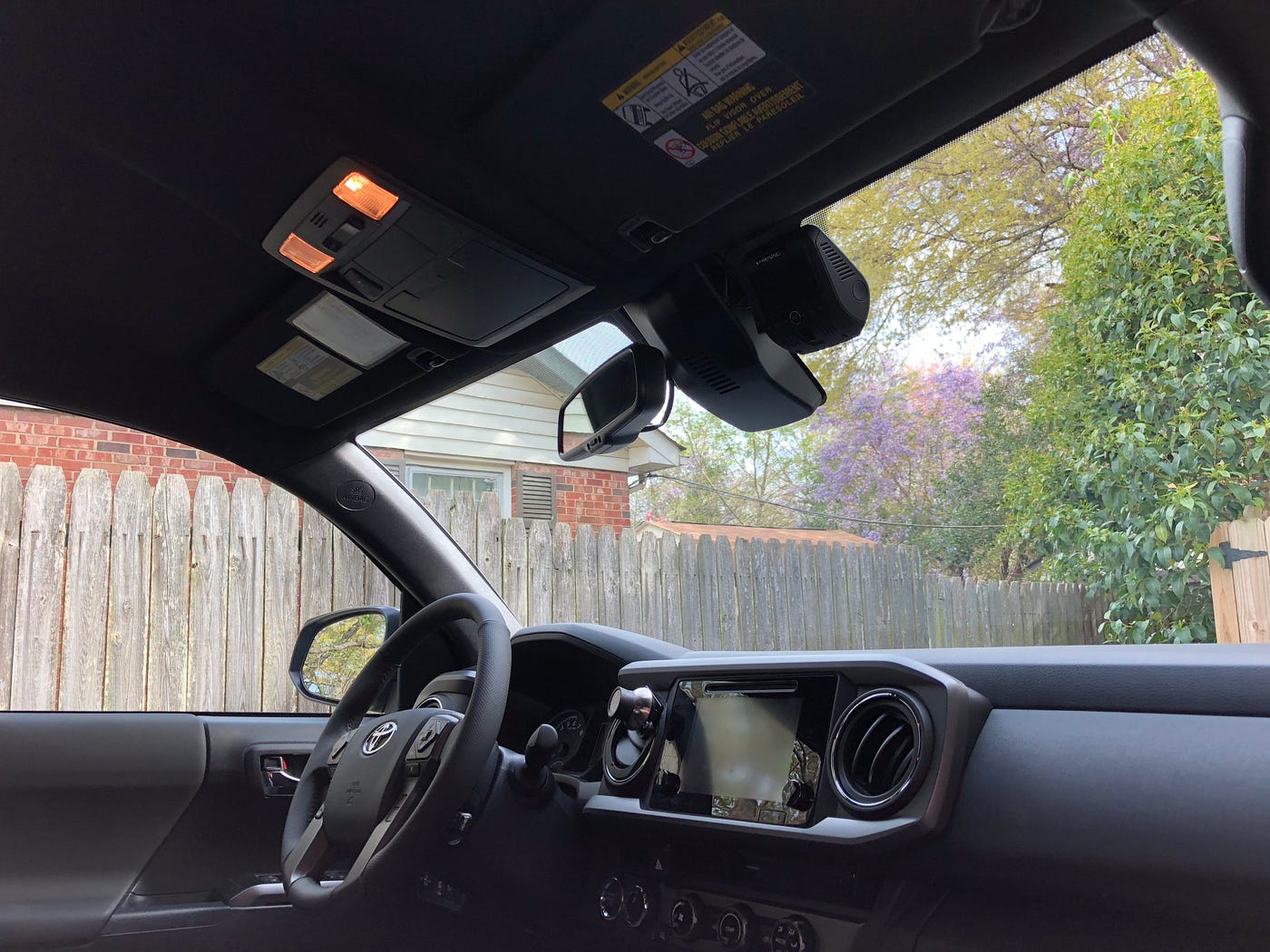
Run the power cable along the edge of the windshield and roof liner. Hide the wire to keep it neat.
Tuck the cable into the gaps between the panels or use clips to secure it. Avoid loose wires that can distract you.
- Start from the dash cam and go towards the car’s power source.
- Use the car’s trim to hide the cable.
- Check that the cable does not block airbags or controls.
Connecting To The Power Source
Plug the power cable into your car’s 12V socket or USB port. Make sure the connection is secure.
For a cleaner look, you can hardwire the dash cam to your car’s fuse box. This may require a fuse tap adapter.
- Use the car charger adapter if available.
- Turn on the dash cam to check power.
- If hardwiring, disconnect the car battery before starting.
- Consult the car’s manual or a professional if unsure.
Credit: medium.com
Configuring Settings
Installing a dash cam in your vehicle is only the beginning. Configuring its settings ensures optimal performance and usability.
Here’s a simple guide to adjust your dash cam settings for the best experience.
Adjusting Video Quality
Video quality is crucial for capturing clear footage. Select the right resolution for your needs.
- High resolution offers clearer images but uses more storage.
- Lower resolution saves space but may miss details.
- Choose a balance that suits your recording needs.
Setting Date And Time
Accurate date and time settings help organize your videos. They are essential for reviewing events.
Check the dash cam’s manual to adjust these settings. Make sure they match your local time zone.
Enabling Safety Features
Many dash cams come with built-in safety features. These enhance your driving safety.
- Collision detection alerts you to potential impacts.
- Lane departure warnings keep you on track.
- Enable these features for added peace of mind.
Testing And Troubleshooting
Testing your dash cam after installation ensures it works correctly. Troubleshooting helps fix common problems quickly.
This guide covers checking the camera angle, power, recording status, and solving typical issues.
Verifying Camera Angle
Check the dash cam angle to capture clear road views. Adjust it to avoid glare or blocked sight.
- Make sure the lens faces straight ahead.
- Position the camera below the rearview mirror.
- Avoid pointing the camera at the dashboard or car hood.
- Test the view by recording a short video.
- Review the video to confirm the road is fully visible.
Checking Power And Recording
Confirm the dash cam receives power and records properly. A good power supply is essential for reliable operation.
| Check | What to Do | Expected Result |
|---|---|---|
| Power Connection | Verify the cable is firmly plugged into the car and dash cam. | Dash cam powers on automatically. |
| Battery Status | Look for battery icon or indicator light. | Shows charging or full battery. |
| Recording Indicator | Check if the red light or icon is blinking. | Continuous blinking means recording is active. |
| Memory Card | Ensure memory card is inserted and formatted. | Dash cam saves video files without error. |
Common Issues And Fixes
Some problems occur often but are easy to fix. Use this list to identify and solve them.
- No Power:Check fuse and car power socket. Replace fuse if blown.
- Dash Cam Won’t Record:Format the memory card or try a new one.
- Video Is Blurry:Clean the camera lens with a soft cloth.
- Camera Angle Is Wrong:Adjust the mount and secure it tightly.
- Files Are Corrupt:Use recommended SD cards and avoid removing card during recording.

Credit: global.botslab.com
Maintaining Your Dash Cam
Keeping your dash cam in good shape helps it work properly. Regular care keeps videos clear and the device reliable.
Follow simple steps to clean, update, and manage storage on your dash cam. This will ensure it captures every important moment.
Regular Cleaning
Clean the lens and screen gently to avoid scratches. Use a soft cloth with no harsh chemicals.
- Turn off the dash cam before cleaning.
- Use a microfiber cloth for the lens.
- Wipe the screen with a dry, soft cloth.
- Do not spray liquids directly on the device.
- Keep the mount area free of dust and dirt.
Firmware Updates
Updates fix bugs and add new features. Check for updates regularly to keep the dash cam working well.
| How to Update | Details |
| Check Manufacturer Website | Look for the latest firmware version. |
| Download Update | Save it to your computer or SD card. |
| Install Update | Follow the instructions to apply the update on the dash cam. |
| Restart Device | Power off and on to complete the update. |
Storage Management
Manage your memory card to avoid full storage. Full storage can stop recording new videos.
- Regularly transfer videos to a computer.
- Delete old or unwanted recordings.
- Format the memory card in the dash cam every few weeks.
- Use a high-quality memory card recommended by the manufacturer.
Credit: www.youtube.com
Frequently Asked Questions
What Tools Do I Need To Install A Dash Cam?
You need a dash cam, power cable, adhesive mount, and a trim removal tool. A fuse tap or USB charger may be required. Having basic tools like a screwdriver helps. These ensure a smooth and secure dash cam installation process.
Where Is The Best Place To Mount A Dash Cam?
Mount your dash cam behind the rearview mirror. This placement provides a clear front view without obstructing driving vision. It keeps the dash cam discreet and stable, ensuring optimal video recording and safety compliance.
How Do I Power A Dash Cam In My Car?
You can power a dash cam via the cigarette lighter socket or hardwire it to the fuse box. Hardwiring offers a cleaner look and continuous power, while the lighter socket is easier for temporary setups.
Can I Install A Dash Cam Myself Or Need A Professional?
Most dash cams are designed for easy self-installation with clear instructions. However, professional installation is recommended for hardwiring or complex setups to ensure safety and proper functioning.
Conclusion
Installing a dash cam helps protect you on the road. It records accidents and keeps proof of events. A dash cam can make driving safer and easier. The process is simple and does not take long. Choose a good spot and follow the instructions.
Enjoy peace of mind while you drive every day. A dash cam is a smart addition to your car. Don’t wait to add this useful device.