Is your car’s GPS showing outdated maps or missing new roads? You’re not alone.
Keeping your GPS updated is crucial to avoid getting lost, save time, and enjoy a smoother drive. But how exactly do you update your GPS without hassle? In this guide, you’ll discover simple, step-by-step tips to refresh your system quickly and easily.
Stick around, and you’ll never have to worry about your navigation leading you astray again.
Check Your Gps Model
Before updating your car’s GPS, you need to know the exact model of your device. Different models have different update methods and software.
Finding your GPS model helps you download the right updates and avoid errors during installation.
Look At The Device Label
Most GPS devices have a label on the back or bottom with the model number. This label usually includes the brand, model, and serial number.
Check The Gps Settings Menu
Your GPS system may show the model number in its settings or system info screen. Look for a menu called “About,” “Info,” or “System.”
- Turn on your GPS device
- Go to the main menu or settings
- Find “About” or “System Info” section
- Note the model number shown on the screen
Consult Your Car’s Manual
Your car’s owner manual may list the GPS model if it comes built-in. Check the section about navigation or infotainment systems.
| Method | Where to Find GPS Model |
|---|---|
| Device Label | Back or bottom of GPS unit |
| Settings Menu | About or System Info screen |
| Car Manual | Navigation or infotainment section |

Credit: www.amazon.com
Gather Necessary Tools
Updating a GPS system in your car needs some preparation. You must have the right tools ready before you start.
This guide helps you gather all the tools needed for a smooth GPS update process.
Usb Drive Or Sd Card
Most GPS systems use a USB drive or SD card to transfer update files. Check your car’s manual to see which one you need.
Computer With Internet Access
You need a computer to download the latest GPS software and maps. Make sure it has a stable internet connection.
Gps System Serial Number
The serial number identifies your GPS unit. You usually find it in the settings menu or on a label on the device.
Power Supply For Your Car
Keep your car powered during the update. A dead battery can stop the update and cause problems.
List Of Common Tools
- USB flash drive or SD card (depending on the GPS model)
- Computer with internet connection
- GPS system serial number or device ID
- Car charger or ensure the car battery is full
- Optional: USB cable to connect the GPS to the computer
Check Compatibility
| Tool | Purpose | Notes |
| USB Drive/SD Card | Transfer update files | Check device type first |
| Computer | Download updates | Must have internet |
| Serial Number | Identify GPS system | Found in settings or label |
| Power Supply | Keep system on during update | Use car charger or full battery |
Connect To A Computer Or Wi-fi
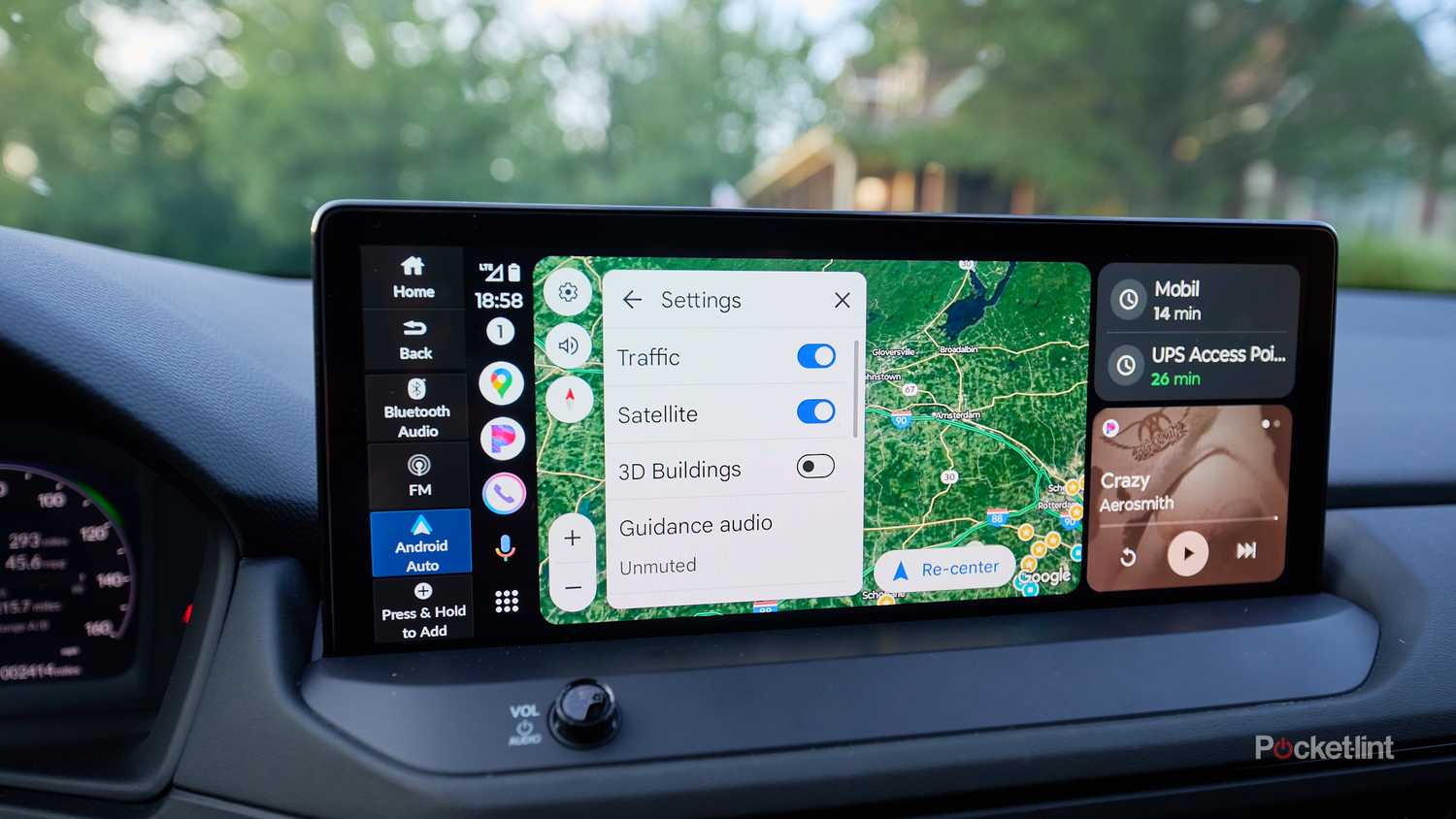
Updating your car’s GPS system keeps maps and software current. You can connect the GPS to a computer or Wi-Fi to get updates. This guide explains how to do both safely and easily.
Make sure your car is parked and the GPS system is on before starting. Follow the right steps depending on your connection method.
Connect Gps To A Computer
Use a USB cable to link your car’s GPS to your computer. This method works if your GPS updates require software downloads.
- Find the USB port on your GPS unit or car dashboard.
- Plug one end of the USB cable into the GPS and the other into the computer.
- Turn on your car and GPS system.
- Open the GPS update software on your computer.
- Follow on-screen instructions to download and install updates.
Connect Gps To Wi-fi
Many modern GPS systems update directly through Wi-Fi. This method is faster and does not require a computer.
| Step | Action |
|---|---|
| 1 | Turn on your car and GPS system. |
| 2 | Access the GPS settings menu. |
| 3 | Find the Wi-Fi or Network option. |
| 4 | Select your Wi-Fi network from the list. |
| 5 | Enter the Wi-Fi password if needed. |
| 6 | Start the update download and installation. |
Tips For A Successful Update
- Keep your car engine running during updates to avoid power loss.
- Use a stable Wi-Fi connection to prevent download errors.
- Do not disconnect cables or turn off the GPS while updating.
- Check your GPS manual for specific update instructions.
Credit: www.pocket-lint.com
Download Update Software
Updating your car’s GPS software keeps it accurate and reliable. You need to download the latest update software from the right source.
Make sure your device is ready and connected before starting the download process. This will help avoid any errors.
Find The Official Update Website
Go to the official website of your car or GPS manufacturer. Look for the support or downloads section. This is where update software is usually available.
Identify your GPS model number. You can find it in the settings menu or the device label. This helps you download the correct update software.
Download The Software
Click the download link for your GPS model. Save the file to your computer. Make sure you have enough storage space.
- Use a fast and stable internet connection
- Close other programs to speed up the download
- Verify the file size matches the website’s details
- Do not disconnect during the download
Install The Update Software
Open the downloaded file on your computer. Follow the installation instructions carefully. Connect your GPS device to the computer if needed.
| Step | Action |
|---|---|
| 1 | Run the installer file |
| 2 | Connect GPS device via USB |
| 3 | Follow on-screen prompts |
| 4 | Wait for installation to complete |
| 5 | Safely eject the device |
Backup Existing Data
Before updating your car’s GPS system, it is important to save your current data. This step helps keep your saved locations and settings safe.
Backing up data avoids losing important information during the update process.
Locate The Backup Option In The Gps Menu
Most GPS devices have a backup feature in their settings. Find the menu that allows you to save or export your data.
This option is usually under “Settings,” “System,” or “Backup.”
Use A Usb Drive Or Memory Card
Connect a USB drive or memory card to your GPS system. This device will store the backup data.
Make sure the storage device has enough free space for the backup.
- Insert the USB or memory card into the car’s USB port
- Select the backup option in the GPS menu
- Choose to save data to the connected device
Save Important Files And Settings
Backup files include saved locations, routes, and personal preferences. Saving these keeps your data safe during updates.
Verify that all important files are selected before starting the backup.
Confirm The Backup Completion
After backing up, check that the process is complete. The GPS system usually shows a message or confirmation.
Safely remove the USB or memory card to prevent data loss or damage.
Install The Update
Updating the GPS in your car ensures you have the latest maps and software. This helps you get accurate directions and discover new routes.
Follow these steps to easily install the update and keep your navigation system current.
Check For Updates
First, ensure that an update is available for your GPS model. Visit the manufacturer’s website to find the latest updates.
- Locate the support or download section on the website.
- Enter your car model and GPS version details.
- Download the latest update files to your computer.
Prepare The Update File
Once downloaded, transfer the update files to a USB drive. Ensure the USB drive is formatted correctly and has enough space.
Install The Update In Your Car
With the update files on the USB drive, you are ready to install them in your car. Start your car and insert the USB drive into the GPS unit.
Follow the on-screen instructions to begin the installation process. Do not turn off the engine during the update.
| Step | Action |
| 1 | Insert USB drive |
| 2 | Follow on-screen prompts |
| 3 | Wait for installation to complete |
Verify The Update
After installation, check that the update was successful. Navigate through the settings to see the latest map and software version details.
If everything looks correct, your GPS is now updated and ready for use.
Verify Update Completion
After updating your car’s GPS, it’s important to check that the update is complete. This ensures your navigation system has the latest maps and information.
Verifying the update can prevent navigation errors and improve your travel experience. Follow these simple steps to confirm the update was successful.
Check The Version Number
Find the version number of the GPS software in your car. This is often available in the settings menu of the navigation system.
Compare the version number with the update information provided by the manufacturer. Ensure they match to confirm the update is complete.
Test The Navigation Functions
Enter a few different destinations into the GPS to test its functions. Make sure it calculates the routes quickly and accurately.
If the GPS guides you correctly to your destinations, the update was likely successful. This step confirms the system is operating as expected.
Look For New Features
Updated GPS software often includes new features or improvements. Check for any new options or settings in the navigation menu.
Explore these new features to make sure they are functioning. This is another way to verify the update was applied correctly.
Consult The Update Documentation
Review any documentation or release notes provided with the update. This information often details the changes and improvements made.
Ensure that all listed updates are present in your GPS system. This confirms that the update completed successfully.
Contact Support If Needed
If you notice issues or missing features, contact the GPS manufacturer’s support. They can help troubleshoot and confirm if the update was successful.
Support can provide guidance or additional steps to ensure your GPS is up-to-date. This is useful if you encounter any problems.
Troubleshoot Common Issues
Updating your car’s GPS can sometimes cause problems. Knowing how to fix these common issues helps keep your system working well.
This guide explains easy steps to solve frequent GPS update problems in cars.
Gps Update Not Starting
Your GPS update may not start if the device is not connected properly. Check the USB cable or Wi-Fi connection first.
Make sure the car’s ignition is on during the update process. Some systems need power to start updates.
Update Freezes Or Stops
Updates can freeze if the internet is slow or the connection is lost. Use a stable Wi-Fi or a strong USB connection.
If the update stops, restart the system and try again. Avoid turning off the car during an update.
Not Enough Storage Space
GPS updates need enough free space on the system. Delete old maps or files to create space before updating.
- Remove unused map data
- Clear cache or temporary files
- Check system storage settings
Update Fails With Error Messages
Error messages can mean the update file is corrupt or the system software is outdated. Download the update again from a trusted source.
Check for system software updates that may be needed before installing map updates.
Gps Shows Wrong Location After Update
If the GPS shows the wrong location, recalibrate the system. Follow the car’s manual for calibration instructions.
Resetting the GPS to factory settings can also fix location errors after an update.
Maintain Gps Accuracy
Keeping your car’s GPS accurate helps you reach destinations on time. Regular updates and proper care improve navigation quality.
Several simple actions can maintain the precision of your GPS system. These steps ensure the device works well every time you drive.
Update Gps Software Regularly
GPS software updates include new maps and bug fixes. These updates improve route accuracy and prevent errors while driving.
Keep Gps Antenna Clear
Obstructions can block satellite signals. Ensure the GPS antenna is clean and free from dirt, snow, or other debris.
Calibrate Your Gps Device
Calibration helps the GPS understand your car’s exact position. Follow the device instructions to perform calibration after updates or repairs.
Use Gps In Open Areas
Tall buildings and dense trees can cause signal loss. Use your GPS in open spaces for the best satellite connection.
Check Gps Settings Frequently
Settings affect how your GPS receives data and shows routes. Regularly review and adjust settings for better accuracy.
- Set correct time zone
- Enable automatic updates
- Clear saved locations you no longer need
- Adjust display brightness for better visibility
Avoid Interference From Other Devices
Electronic devices may interfere with GPS signals. Keep phones, radios, and other gadgets away from the GPS unit.
| Common Sources of Interference | How to Avoid Them |
| Mobile phones | Keep phones away from GPS antenna |
| Radar detectors | Turn off or relocate devices |
| Wi-Fi routers | Use GPS away from strong Wi-Fi signals |
| Power cables | Route cables away from GPS wires |

Credit: www.amazon.ca
Frequently Asked Questions
How Often Should I Update My Car Gps?
Updating your car GPS every 6 to 12 months ensures accurate maps and navigation. Frequent updates prevent errors and add new routes. Check your GPS system’s update notifications regularly to stay current.
Can I Update My Car Gps For Free?
Many car GPS systems offer free updates within a certain period or lifetime. Some manufacturers provide free updates via their websites or apps. Always check your GPS brand’s policy for available free updates.
What Tools Do I Need To Update My Gps?
You typically need a USB cable or SD card and a computer with internet access. Some systems allow updates via Wi-Fi directly on the car. Use the official GPS software or website to download updates safely.
Will Updating Gps Improve Navigation Accuracy?
Yes, updating your GPS improves navigation accuracy by adding new roads, traffic data, and points of interest. This reduces wrong directions and enhances your driving experience. Regular updates keep your system reliable.
Conclusion
Updating your car’s GPS keeps navigation accurate and reliable. Regular updates help avoid wrong routes and traffic delays. Most updates are simple and quick to do. Just follow the steps carefully, and your GPS will work like new. Stay safe and enjoy smooth drives with the latest maps.
Don’t forget to check for updates often. This small task saves time and stress on the road. Keep your GPS ready for every trip. Easy to do, worth the effort.