Have you ever struggled to see your phone’s GPS clearly while driving? It can be frustrating and even dangerous to take your eyes off the road just to check directions.
What if you could easily hook your phone’s GPS to your car, making navigation smooth and safe? You’ll discover simple, step-by-step ways to connect your phone’s GPS directly to your car’s system. By the end, you’ll feel confident using your phone for navigation without any hassle.
Keep reading to unlock the easiest methods that fit your car and phone perfectly.
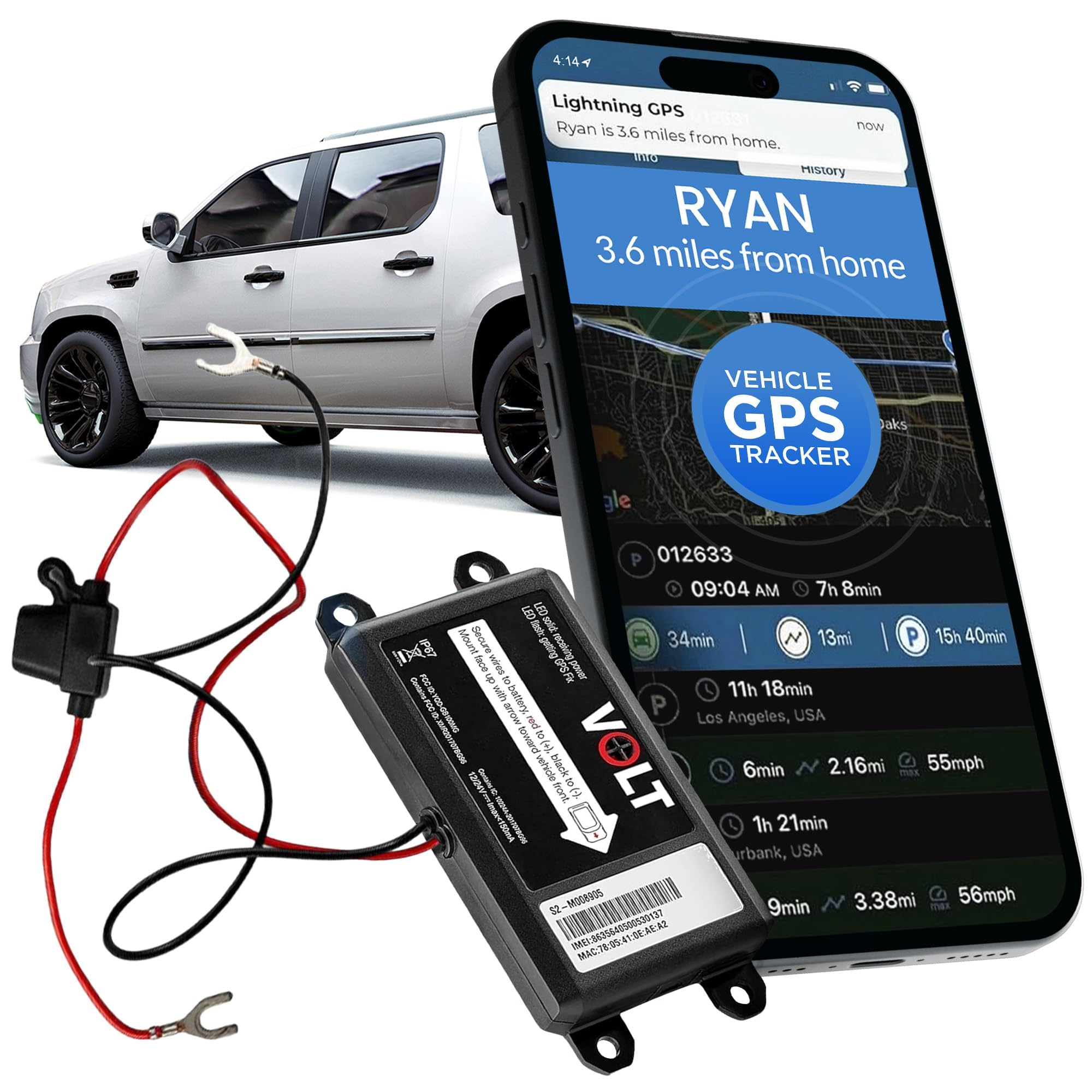
Credit: www.amazon.ca
Choose The Right Connection Method
Connecting your phone’s GPS to your car helps with navigation and safety. You need to pick the best way to connect your phone to the car system.
Different cars and phones support different connections. Choosing the right method makes your drive easier and safer.
Bluetooth Pairing
Bluetooth connects your phone to the car wirelessly. It is easy to set up and works well for GPS audio and calls.
To pair, turn on Bluetooth on both devices. Find your car’s Bluetooth name on your phone and select it. Confirm the code if asked.
- Works without cables
- Supports calls and audio
- May have slight audio delay
- Battery uses phone power
Usb Cable Setup
Use a USB cable to connect your phone to the car’s USB port. This gives a stable connection and charges your phone.
Plug the cable into your phone and car. The car system should detect your phone and show GPS apps. Use the car screen to control navigation.
- Stable and fast data transfer
- Charges your phone while connected
- Supports full app control
- Requires a cable to carry
Using Auxiliary Input
The auxiliary input uses a 3.5mm audio cable. It only sends sound from your phone to the car speakers.
Connect one end to your phone’s headphone jack and the other to the car’s aux port. Play GPS audio through the car’s sound system.
- Simple and works with old cars
- Only sends audio, no control
- Needs audio cable
- Does not charge your phone
Prepare Your Phone And Car
Connecting your phone’s GPS to your car lets you navigate easily. You need to prepare both your phone and your vehicle first. This guide helps you get ready for a smooth connection.
Follow these simple steps to check your devices and set them up properly. This way, your phone’s GPS will work well with your car system.
Check Compatibility
Not all phones and cars connect the same way. Check if your phone and car support GPS linking. Look at your car’s manual or settings for supported devices. Make sure your phone’s model works with your car’s system.
- Check if your car supports Bluetooth or USB GPS connection
- Confirm your phone’s operating system is compatible
- Look for apps or software your car needs to connect with your phone
- Verify the car’s display can show GPS navigation from your phone
Update Software
Old software can stop your phone and car from syncing. Update your phone’s operating system and apps. Also, check your car’s infotainment system for updates. Updated software fixes bugs and adds new features.
| Device | How to Update |
| Phone | Go to settings, then software update |
| Car Infotainment | Visit the car manufacturer’s website or use the car’s system menu |
Enable Location Services
Your phone must share location data to use GPS in your car. Turn on location services in your phone settings. Also, allow your car or its app to access this data. This helps your car get accurate GPS signals from your phone.
- Open your phone’s settings
- Find and enable “Location” or “GPS” services
- Allow location access for your car’s app or connection software
- Check if your phone asks for permission when connecting to the car
Connect Your Phone To The Car System
Connecting your phone to your car allows you to use GPS and other apps safely. It helps you keep your eyes on the road while getting directions.
There are several ways to connect your phone, such as Bluetooth, USB, or special apps like CarPlay and Android Auto.
Pairing Via Bluetooth
Bluetooth lets you connect your phone wirelessly to your car. This way, you can play music and use GPS without cables.
To pair, turn on Bluetooth on both devices. Then, find your car on your phone’s Bluetooth list and select it. Confirm the pairing code if needed.
- Enable Bluetooth on your phone and car system
- Search for your car on the phone’s Bluetooth menu
- Select the car name and confirm the pairing code
- Allow permissions for calls and media
Connecting With Usb
Using a USB cable offers a strong connection between your phone and car. It often charges your phone while connected.
Plug your phone into the car’s USB port with a compatible cable. The car system will detect your phone and may ask to allow access.
- Use a USB cable that fits your phone
- Connect the cable to the car’s USB port
- Allow the car system to access your phone
- Use the car screen to control apps and GPS
Using Carplay Or Android Auto
CarPlay and Android Auto let you use your phone apps on the car’s display. They make GPS and music easier to use while driving.
Connect your phone with a USB cable or Bluetooth. Open the app on your car screen. Follow instructions to start using your phone safely.
- Check if your car supports CarPlay or Android Auto
- Connect your phone with USB or Bluetooth
- Allow permissions on your phone and car system
- Use voice commands or car controls to operate apps
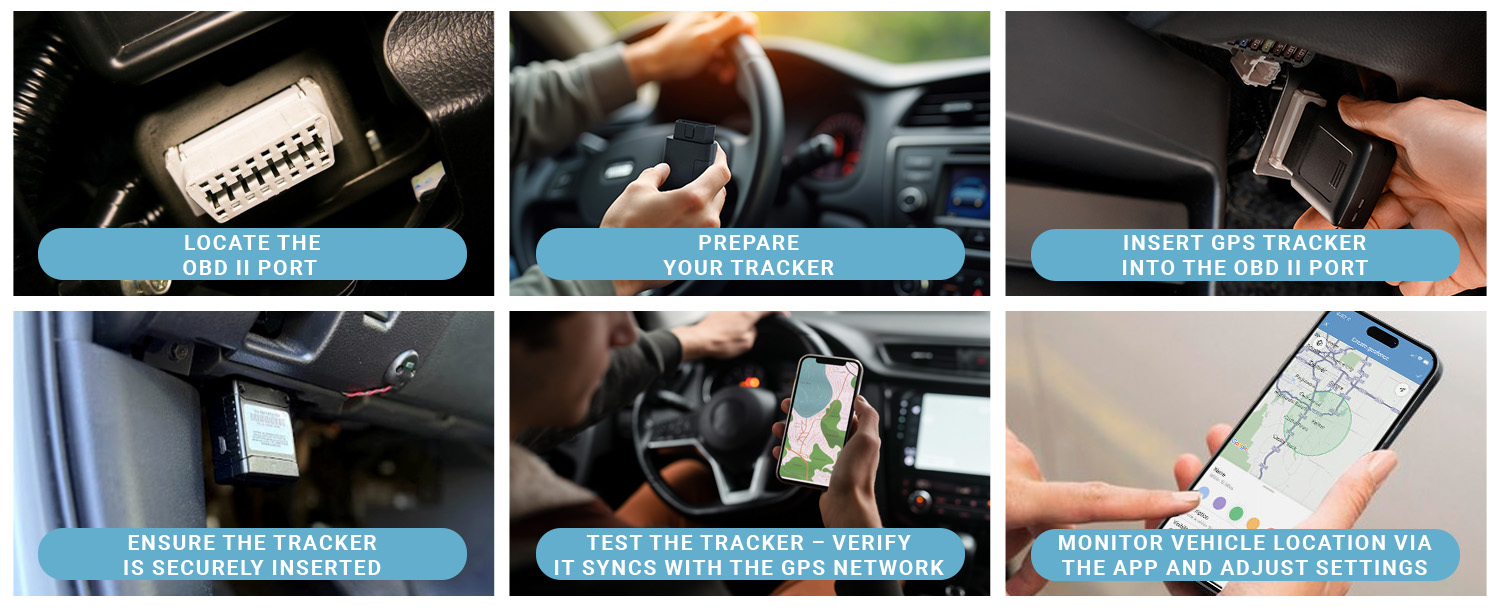
Credit: www.brickhousesecurity.com
Configure Gps Settings For Navigation
Getting your phone GPS connected to your car helps with easy navigation. You can drive without stopping to check directions.
Adjust your GPS settings to match your needs. This makes your driving safer and more comfortable.
Select Preferred Navigation App
Choose the navigation app you like best on your phone. Most phones have built-in apps like Google Maps or Apple Maps.
Set the app as default for navigation tasks. This lets your phone use it automatically when you connect to the car.
- Open your phone’s settings
- Find the navigation or maps section
- Pick your favorite app as default
- Check app permissions for location access
Adjust Audio And Display Settings
Set the volume of GPS voice instructions to a clear level. Make sure you can hear directions over car noise.
Change screen brightness and map view on your phone or car display. This helps you see the map well while driving.
- Increase or decrease voice guidance volume
- Choose day or night mode for the map
- Set screen brightness to avoid glare
- Enable split-screen if your car supports it
Set Up Voice Commands
Use voice commands to control navigation without touching your phone. This keeps your hands free and eyes on the road.
Enable voice recognition in your navigation app or phone settings. Learn simple commands like “navigate home” or “find gas station.”
- Turn on voice control in app settings
- Practice common voice commands
- Speak clearly for better recognition
- Use your car’s voice button if available
Troubleshoot Common Issues
Connecting your phone’s GPS to your car can sometimes cause problems. These issues may affect navigation and safety. Knowing how to fix common troubles helps you stay on track.
Below are common problems and simple ways to solve them. Follow these tips to get your GPS working smoothly with your car.
Connection Drops
Connection drops happen when the phone and car lose their link. This can cause the GPS to stop working or lag.
- Check your phone’s Bluetooth or Wi-Fi settings.
- Make sure the car’s system supports your phone model.
- Keep the phone close to the car’s receiver.
- Restart both your phone and car system.
- Update your phone and car software regularly.
Gps Signal Problems
Weak GPS signals cause poor location tracking. Buildings, tunnels, or bad weather may block signals.
| Cause | Fix |
| Tall buildings nearby | Drive to open areas |
| Thick car window tint | Remove or reduce tint |
| Phone case blocking signal | Use a thinner case |
| Bad weather (rain, clouds) | Wait for clearer conditions |
| Phone GPS sensor dirty | Clean phone gently |
App Crashes Or Freezes
Sometimes the GPS app crashes or stops responding. This disrupts navigation and can be frustrating.
- Close and reopen the app.
- Clear the app cache in your phone settings.
- Check for app updates and install them.
- Restart your phone to free memory.
- Uninstall and reinstall the app if problems persist.
Enhance Navigation Experience
Connecting your phone’s GPS to your car can greatly improve your travel. It helps in finding the best routes and avoiding traffic jams.
With a few simple steps, you can enhance your navigation experience. Let’s explore how to make the most of your phone GPS in the car.
Use Offline Maps
Offline maps are useful when you lose internet connection. They ensure you can still navigate without data.
Download maps before your trip. This saves mobile data and keeps navigation smooth, even in remote areas.
- Download maps for the regions you will visit
- Save maps on your phone for easy access
- Use offline maps to avoid data charges
Enable Real-time Traffic Updates
Real-time traffic updates help you avoid congestion. They provide information about accidents and road closures.
Turn on this feature to get live updates. It helps in choosing the fastest route during your drive.
- Check for traffic updates regularly
- Use apps that offer real-time traffic alerts
- Plan routes with current traffic information
Customize Route Preferences
Customize your routes to suit your needs. Choose options like avoiding tolls or taking the scenic route.
Adjust settings in your GPS app. This ensures you travel in a way that is comfortable and efficient for you.
- Select routes that match your travel style
- Set preferences for faster or scenic routes
- Avoid toll roads if preferred

Credit: trackingsystemdirect.com
Frequently Asked Questions
How Do I Connect My Phone Gps To My Car?
You can connect your phone GPS to your car via Bluetooth or USB. Enable Bluetooth on both devices and pair them. Some cars support Apple CarPlay or Android Auto for seamless GPS integration. Follow your car’s manual for specific steps.
Can I Use Phone Gps On Car’s Built-in Screen?
Yes, many modern cars support phone GPS on their built-in screens using Apple CarPlay or Android Auto. Connect your phone via USB or Bluetooth, then launch the GPS app on your phone. The navigation will display on the car’s screen for easier viewing.
What Apps Work Best For Phone Gps In Cars?
Google Maps, Waze, and Apple Maps are popular GPS apps for cars. They offer real-time traffic updates and voice navigation. These apps are compatible with both Android Auto and Apple CarPlay, providing a smooth experience while driving.
Is Phone Gps Accurate When Hooked To The Car?
Phone GPS remains accurate when connected to your car. It uses satellite signals and can improve accuracy with car sensors. However, accuracy may vary in tunnels or areas with poor signal. Always keep your phone’s GPS and apps updated for best performance.
Conclusion
Getting your phone’s GPS connected to your car is simple and useful. It helps you drive safely and find places quickly. Just follow the steps carefully, and you will be ready in no time. Keep your phone charged and updated for the best experience.
Enjoy the convenience of using your phone’s GPS on your car screen. Stay focused on the road and let technology guide your way. Safe travels!