Are you tired of getting lost or fumbling with your phone while driving? Connecting a GPS to your car can make every trip smoother and stress-free.
Imagine having clear directions right on your dashboard, so you can keep your eyes on the road and reach your destination with ease. In this guide, you’ll discover simple steps to link your GPS device to your car, no matter the make or model.
Keep reading, and soon you’ll enjoy smarter navigation that saves you time and frustration on every drive.
Credit: www.vevor.com
Choosing The Right Gps Device
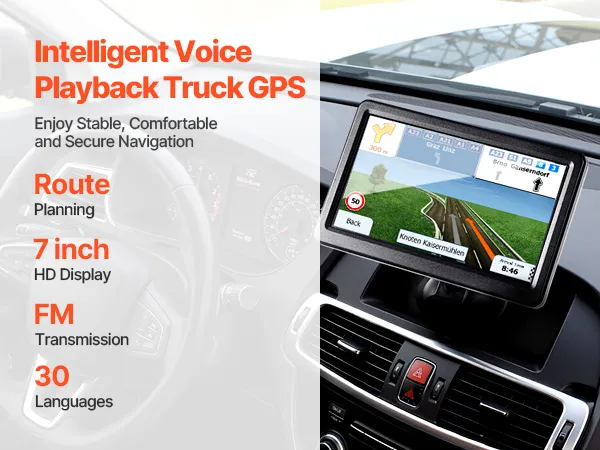
Finding the right GPS device for your car helps you drive safely and reach your destination. There are many options to choose from.
Knowing the differences between devices makes it easier to pick one that fits your needs and car type.
Built-in Vs Portable Gps
Built-in GPS systems come installed in many new cars. Portable GPS units are small devices you can move between cars.
Each type has good and bad points to think about before buying.
- Built-in GPS:Easy to use, fits your car’s dashboard, no extra setup needed.
- Portable GPS:Can be used in different cars, easy to update, usually cheaper.
- Built-in GPS:May have better integration with car features like voice commands.
- Portable GPS:Needs to be charged and mounted inside the car.
Features To Look For
Good GPS devices have features that make driving easier and safer. Look for these key features before buying.
- Clear screen that is easy to read in sunlight
- Up-to-date maps with regular updates
- Voice directions to keep your eyes on the road
- Real-time traffic alerts to avoid jams
- Simple menu that is easy to use while driving
- Bluetooth or smartphone connectivity for hands-free calls
Compatibility With Your Car
Your GPS device should work well with your car’s system. Check compatibility before buying to avoid problems.
Some cars support only certain GPS brands or types. Make sure your device fits your car’s model and year.
- Check if your car has a built-in GPS slot or screen
- Look for devices that connect with your car’s Bluetooth
- Confirm power source options: cigarette lighter or USB
- Read your car’s manual for GPS installation advice
Credit: en.trkify.com
Preparing Your Car For Gps Installation
Installing a GPS device in your car needs some preparation. You must get your car ready so the process goes smoothly.
This guide covers important steps to prepare your car for GPS installation. It includes finding power sources, clearing space, and gathering tools.
Locating Power Sources
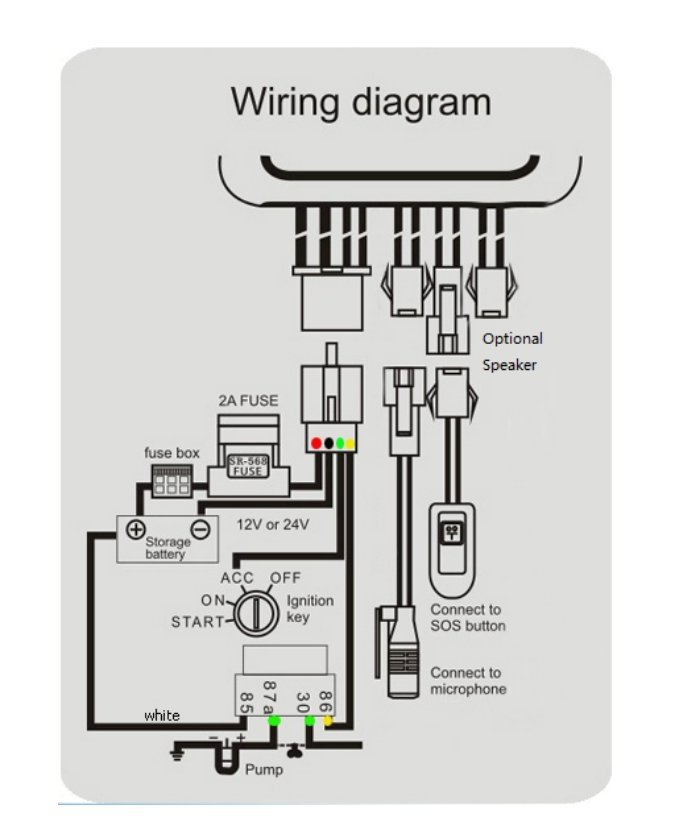
Your GPS device needs a power source to work. You can use your car’s fuse box or the cigarette lighter socket for power.
- Check your car’s manual to find the fuse box location.
- Use a fuse tap to connect the GPS power wire safely.
- Alternatively, use the 12V cigarette lighter socket.
- Make sure the power source turns off with the ignition to save battery.
Clearing Dashboard Space
Clear space on your dashboard to place the GPS device. It should be easy to see and reach while driving.
| Dashboard Area | Recommended Action |
| Center Console | Remove items and clean the surface |
| Near Windshield | Check for clear view and avoid blocking sensors |
| Air Vent Area | Ensure vents are not blocked by the device |
Gathering Necessary Tools
Before starting the installation, gather all tools and materials needed. This saves time and avoids interruptions.
- Screwdrivers (flathead and Phillips)
- Wire strippers and electrical tape
- Fuse tap or adapter
- GPS device with mounting kit
- Cleaning cloth for dashboard
- Zip ties or clips for cable management
Connecting A Built-in Gps System
Many cars come with built-in GPS systems. These systems help you navigate roads safely. To use them, you need to connect the GPS to your car’s software and keep it updated.
This guide explains how to connect a built-in GPS system easily. Follow the steps to access the system, pair it with your vehicle, and update the maps and firmware.
Accessing The Car’s Infotainment System
Start by turning on your car’s ignition. Then, find the infotainment screen on your dashboard. This screen controls many features, including the GPS system.
Use the touchscreen or buttons near the screen to open the GPS or navigation menu. This menu lets you see and control GPS settings.
Pairing Gps With Vehicle Software
Pairing your GPS with your car’s software helps the system work smoothly. Follow these steps to pair the devices:
- Open the settings menu on the infotainment screen.
- Select the “Connectivity” or “Bluetooth” option.
- Turn on Bluetooth if it is off.
- Find the GPS system in the list of available devices.
- Select the GPS device and confirm pairing.
- Enter a PIN if the system asks for one.
- Wait for the confirmation that pairing is successful.
Updating Maps And Firmware
Keeping your GPS maps and firmware updated is important. Updates fix bugs and add new roads or features. You can update your system using a USB drive or Wi-Fi.
| Update Method | Steps | Notes |
|---|---|---|
| USB Drive |
| Use a USB formatted to FAT32 or exFAT. |
| Wi-Fi |
| Ensure the car stays on during the update. |
Setting Up A Portable Gps Device
Setting up a portable GPS device in your car is easy. It helps you find directions quickly and safely.
This guide shows how to mount the GPS, power it, and adjust the settings for best use.
Mounting The Gps On The Dashboard Or Windshield
Place the GPS where you can see it clearly while driving. Most devices come with a suction mount.
Clean the spot on the dashboard or windshield before attaching the mount. This helps it stick well.
- Choose a spot with a clear view of the road.
- Avoid blocking your view or airbags.
- Press the suction cup firmly to secure it.
- Adjust the angle for easy reading.
Powering The Device Via Car Charger
Keep your GPS powered by plugging it into your car’s charger port. This prevents battery drain.
Use the charger cable that comes with your GPS device. Plug one end into the GPS and the other into the car charger.
- Connect the cable to the GPS power port.
- Insert the charger into the car’s 12V outlet.
- Check that the GPS screen lights up.
- Turn off the charger when not in use.
Configuring Gps Settings
Adjust the GPS settings to fit your preferences. This helps the device give better directions.
Set the language, volume, and map preferences before driving. Update the maps if needed.
- Choose your language for menus and voice.
- Set the volume to hear instructions clearly.
- Select map view: 2D or 3D.
- Update maps for new roads and places.
- Enter your home and work addresses.
Linking Gps With Smartphone Apps
Connecting your car’s GPS system with smartphone apps makes navigation easier. It lets you use real-time data and controls from your phone.
This guide explains how to link GPS to your car using different connection types and app features.
Using Bluetooth Or Usb Connection
Bluetooth and USB are common ways to connect your phone to the car’s GPS system. Bluetooth offers wireless convenience while USB provides a stable connection.
To connect, turn on Bluetooth or plug in the USB cable. Then, select your car’s system on your phone to pair or connect.
- Turn on Bluetooth on both devices
- Search for your car’s system on your phone
- Accept the pairing request
- For USB, plug the cable into your phone and car port
- Select the USB connection on your phone if needed
Syncing Navigation Apps
After connecting, open your favorite navigation app like Google Maps or Waze. Sync it with the car’s GPS to see directions on the car screen.
Some apps automatically detect the car system and share data. Others need manual settings to allow syncing.
- Open the navigation app on your phone
- Go to app settings
- Enable car or device connection
- Allow permissions for location and notifications
- Check if the app displays on your car screen
Enabling Voice Commands
Voice commands help you control GPS without using your hands. You can ask for directions or change routes by speaking.
To enable voice commands, activate the voice assistant on your phone or car system. Make sure both devices are connected and listening.
- Activate voice assistant on your phone (e.g., Siri or Google Assistant)
- Enable voice control in your car’s settings
- Test commands like “Navigate to home” or “Find nearest gas station”
- Speak clearly and wait for the system to respond
Troubleshooting Common Gps Issues
Many drivers face issues when connecting GPS to their car. Understanding common problems helps in finding solutions quickly. Here are some frequent GPS issues and how to troubleshoot them.
Signal Loss And Interference
GPS signal loss is a common problem. Interference from tall buildings or dense trees can cause this. Make sure your GPS device has a clear view of the sky.
Another solution is to check the GPS antenna. Ensure it is not blocked by any objects in the car. Sometimes, moving the device to a different spot helps.
Power Connection Problems
Power issues can cause your GPS to turn off unexpectedly. Check the power cable for any signs of damage. Ensure it is plugged in securely.
If the problem continues, try using a different power outlet in the car. A faulty outlet might not provide enough power for the GPS.
Software Glitches And Updates
Software glitches can disrupt GPS function. Regular updates fix bugs and improve performance. Check if your GPS has the latest software version.
If updates do not solve the issue, try restarting the device. This can clear temporary glitches and restore normal function.
- Check for available updates regularly
- Restart device if issues persist
- Contact support if problems continue
Tips For Optimal Gps Performance
Connecting your GPS to your car can make navigation easier. Here are some tips to keep your GPS working well.
These tips will help you with updates, placement, and saving locations.
Regular Software Updates
Updating your GPS software is important. It ensures you have the latest maps and features.
- Check for updates monthly.
- Connect your GPS to Wi-Fi for downloads.
- Follow on-screen instructions to install.
Proper Device Placement
Where you place your GPS in the car matters. It affects signal strength and visibility.
Consider these placement tips:
- Mount it on the dashboard for a clear view.
- Avoid placing it near metal objects.
- Keep it within easy reach for safe use.
Saving Favorite Locations
Save your favorite places on your GPS. It helps you reach them quickly without re-entering addresses.
| Location | Type |
| Home | Residential |
| Office | Work |
| Supermarket | Shopping |
Credit: axxontracker.com
Frequently Asked Questions
How Do I Connect Gps To My Car System?
To connect GPS, use your car’s Bluetooth or USB port. Enable GPS on your phone or device, then pair it with the car system. Follow the car’s manual for specific steps. This allows navigation directly on your car’s display.
Can I Use My Phone Gps With My Car?
Yes, you can use your phone’s GPS by connecting it to your car via Bluetooth or USB. This lets you display maps and directions on your car’s screen, providing a safer and more convenient navigation experience.
What Is The Best Gps Device For Cars?
The best GPS device depends on your needs. Popular brands include Garmin, TomTom, and Magellan. Look for features like real-time traffic updates, voice commands, and easy installation to enhance your driving experience.
Do All Cars Support Gps Connectivity?
Most modern cars support GPS connectivity through built-in systems or smartphone integration like Apple CarPlay or Android Auto. Older models may require external GPS devices or adapters to enable navigation features.
Conclusion
Connecting GPS to your car is simple with the right steps. Start by checking your device and car compatibility. Use the correct cables or wireless settings for a smooth link. Keep your GPS software updated for the best performance. Test the connection before driving to avoid issues on the road.
Enjoy clear directions and safer travels with your connected GPS. Stay patient and follow instructions carefully for success. This small effort makes your driving easier and stress-free.