Is your car GPS showing outdated routes or missing new roads? You rely on it to guide you smoothly, but without updates, it can lead you astray.
Keeping your GPS current is easier than you think, and it can save you time, fuel, and frustration. You’ll discover simple steps to update your car GPS quickly and confidently. Ready to get the most accurate directions every time you drive?
Let’s dive in.

Credit: www.amazon.com
Check Your Gps Model
Updating your car GPS needs the right steps for your device. First, you must know your GPS model.
Knowing the model helps you find the correct update files and instructions. Different brands and models have different update processes.
Look At The Gps Device Itself
Check the front or back of your GPS device. The model number is often printed there.
You might see a label with the brand name and model number. Write it down for later use.
Find The Model In The Device Settings
Turn on your GPS and open the menu or settings. Look for options like “About” or “Device Info.”
The model number and software version often appear here. Use this info to find the right update.
Check The User Manual Or Box
Your GPS box or user manual has the model number printed. Keep these documents for reference.
If you lost the manual, search online using your GPS brand and other details to find the model.
Use The Manufacturer’s Website
Visit the GPS manufacturer’s website. They often have a tool to help you identify your model.
Enter your device details or serial number to get the exact model and update options.
Backup Your Data
Backing up your car GPS data is important before updating. It keeps your maps and settings safe. This step helps avoid data loss during the update process.
In this guide, you will learn how to back up your GPS data easily. Follow these tips to protect your information.
Why Backup Your Gps Data
Backing up your data saves your favorite locations and routes. It also keeps your personal settings intact. If the update fails, you can restore everything quickly.
Methods To Backup Your Data
- Connect your GPS device to a computer using a USB cable.
- Open the GPS folder and copy all important files to your computer.
- Use the GPS manufacturer’s software to back up data to the cloud or PC.
- Save copies of maps and settings on an external drive or USB stick.
Backup Tips For Different Gps Models
| GPS Brand | Backup Method | Notes |
| Garmin | Use Garmin Express software | Syncs data to PC or cloud |
| TomTom | Connect via USB and copy files | Backup maps manually |
| Pioneer | Use SD card export | Remove SD card and save files |
| Kenwood | Backup via device menu | Follow on-screen instructions |
What To Include In Your Backup
- Saved destinations and waypoints
- Custom routes and trip logs
- User preferences and settings
- Downloaded maps and updates
- Voice commands and favorites
Connect To A Computer
Updating your car GPS often needs a connection to a computer. This helps you download new maps and software safely.
Most GPS devices use a USB cable to link to your PC or Mac. You can then transfer updates from the computer to your GPS.
Install Required Software
Your GPS system needs special software on your computer. This software helps your computer talk to the GPS device.
Install the software before connecting your GPS. It usually comes from the GPS maker and is free to download.
- Check your GPS manual for software names
- Download the correct version for your computer
- Follow the installation instructions carefully
Use Official Websites
Always get GPS updates and software from official websites. This keeps your device safe from viruses and errors.
Official sites have the latest files. They also provide guides and support if you need help.
- Visit the GPS brand’s main website
- Look for a support or downloads section
- Enter your GPS model to find updates
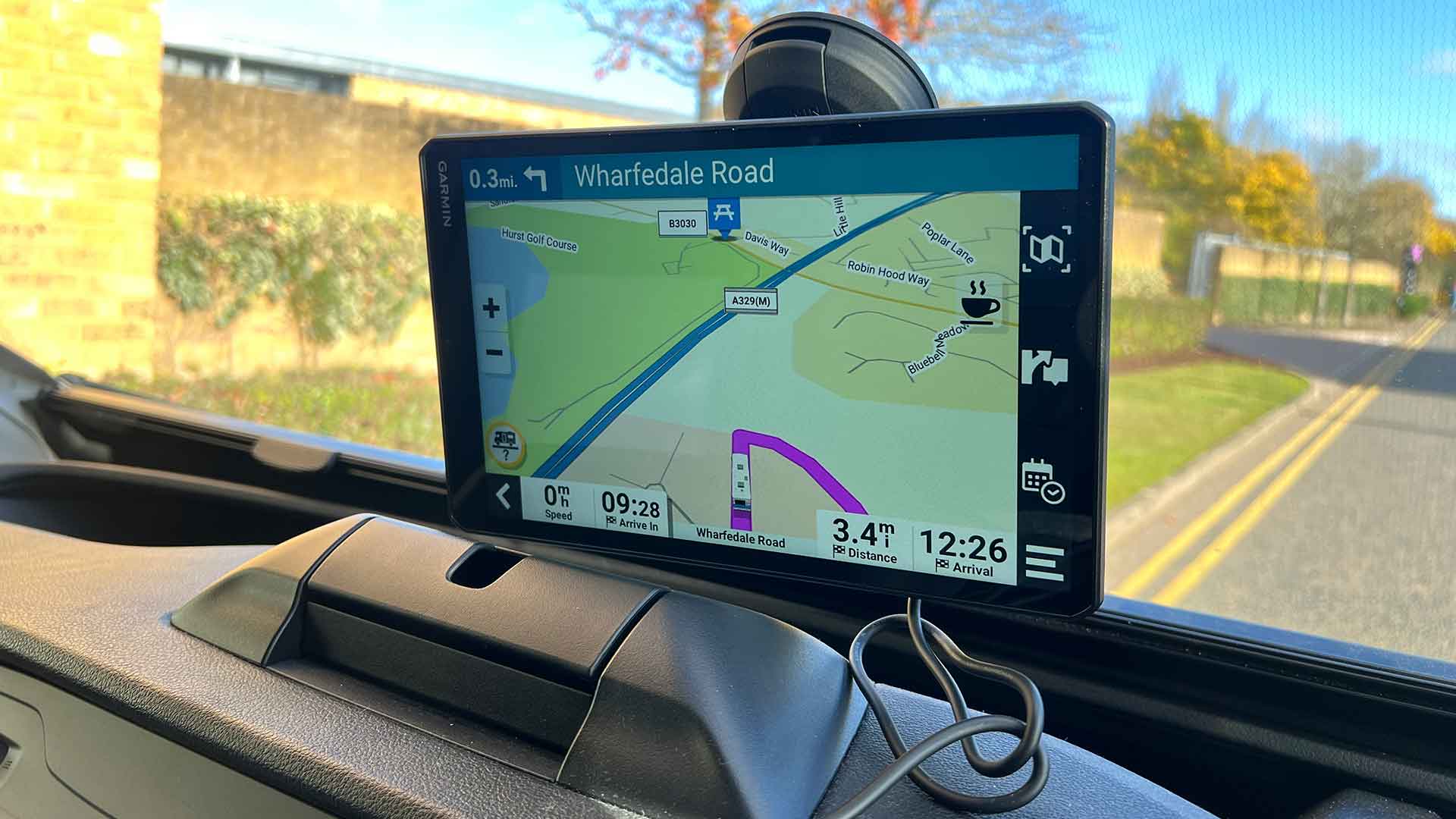
Credit: www.practicalmotorhome.com
Update Via Usb Drive
Updating your car GPS is important to keep maps current. Using a USB drive is a simple way to update it.
Follow these steps to ensure your GPS has the latest information. This will help you avoid getting lost on new roads.
Check Compatibility
First, make sure your car’s GPS can be updated with a USB drive. Check your car’s manual or the manufacturer’s website for details.
Not all GPS systems support USB updates. Knowing this saves time and effort.
Download Updates
Visit the GPS manufacturer’s website to download the latest maps. Look for the download section and select your car model.
Save the update file on your computer. Ensure the file is compatible with your GPS system.
Transfer To Usb Drive
Insert a USB drive into your computer. Copy the downloaded update file to the USB drive.
Make sure the USB drive has enough space for the update file. Eject the USB safely after copying.
Insert Usb Into Car
Start your car and turn on the GPS system. Insert the USB drive into the car’s USB port.
The GPS should detect the update file automatically. Follow the on-screen instructions to begin the update.
Complete The Update
Wait for the update to finish. Do not turn off the car or remove the USB drive until the update is complete.
Once done, the GPS will restart with the new maps. Your GPS is now ready to use with updated information.
Update Using Wi-fi
Updating your car GPS using Wi-Fi is easy and fast. It keeps your maps current without extra tools.
Most modern GPS systems can connect to Wi-Fi to download updates directly. This method saves time.
Connect Your Car Gps To Wi-fi
First, turn on your car’s infotainment system. Find the Wi-Fi settings in the menu.
Select your home or a trusted network. Enter the password if needed. Make sure the connection is strong.
- Open the settings menu
- Choose Wi-Fi or network options
- Pick a known Wi-Fi network
- Enter the password and connect
Check For Available Updates
After connecting, go to the GPS update section. The system will check for new map files or software updates.
If updates are available, your GPS will show a notification or prompt you to start the download.
- Open the navigation or system settings
- Look for ‘Update’ or ‘Software Update’
- Press ‘Check for Updates’
- Wait for the system to scan for new files
Download And Install The Update
Start the download once you see the update prompt. Do not turn off the car or disconnect Wi-Fi during this time.
The system will install the update automatically after downloading. This may take several minutes.
- Press ‘Download’ or ‘Install’
- Keep the car on or in accessory mode
- Do not disconnect from Wi-Fi
- Wait until installation finishes
Verify The Update Completion
Once the update installs, your GPS will restart or notify you. Check the map version to confirm.
Updated maps improve navigation accuracy and add new routes or points of interest.
- Look for update confirmation on screen
- Check the map or software version
- Test the GPS to see new features

Credit: blog.eyespysupply.com
Troubleshoot Common Issues
Updating your car GPS can sometimes be tricky. Problems may stop the update from finishing.
Knowing how to fix common issues helps you keep your GPS working well and accurate.
Fix Connection Problems
Your GPS needs a good connection to update. Check the USB cable or Wi-Fi signal first.
Try these tips to fix connection problems and start the update again.
- Use a different USB cable if the current one feels loose or broken.
- Make sure your car or device is connected to a stable Wi-Fi network.
- Restart your car’s system or GPS device to refresh the connection.
- Turn off any firewalls or antivirus software that may block the update.
- Check if your GPS device is fully charged before starting the update.
Resolve Update Failures
Sometimes the update may fail. This can happen if the file is corrupted or storage is full.
Try these solutions to fix update failures and complete the process smoothly.
- Delete old updates or files to free up space on your GPS device.
- Download the update file again to avoid corrupted data.
- Use the official update tool or software from the GPS maker.
- Restart your device and try the update one more time.
- Make sure your GPS software is compatible with the update version.
Schedule Regular Updates
Keeping your car GPS updated ensures accurate navigation and improved performance. Regular updates help you avoid getting lost and save time on the road.
Many GPS systems offer features like traffic updates and road closures, but these rely on having the latest map data. Scheduling regular updates is key to getting the most out of your device.
Understanding Update Frequencies
Different car GPS models have different update frequencies. Some require monthly updates, while others need updates quarterly or annually. Knowing your device’s schedule helps keep it current.
- Check your GPS manual for update frequency.
- Visit the manufacturer’s website for the latest schedule.
- Set reminders to download and install updates.
Setting Up Automatic Updates
Many modern GPS systems allow for automatic updates. This feature ensures that your device always has the latest maps without manual downloads.
Enable automatic updates in your GPS settings menu. Connect your device to Wi-Fi for seamless updates. This reduces the hassle of manual installations.
Manual Update Procedures
If your GPS does not support automatic updates, you can manually update it. This involves downloading the latest maps from the manufacturer’s website and installing them on your device.
| Step | Action |
| 1 | Visit the GPS manufacturer’s website. |
| 2 | Download the latest maps. |
| 3 | Connect your device to your computer. |
| 4 | Transfer the maps to your GPS. |
Frequently Asked Questions
How Do I Check My Car Gps Software Version?
To check your car GPS software version, access the settings menu on your GPS device. Navigate to “About” or “System Info. ” The version number is usually displayed there. Knowing this helps you determine if an update is necessary for optimal performance.
Can I Update Car Gps Without A Computer?
Some car GPS systems allow updates via Wi-Fi directly. Check if your device supports over-the-air updates. If supported, connect to a stable Wi-Fi network and follow on-screen prompts. This method simplifies updating without needing a computer or cables.
How Often Should I Update My Car Gps?
Updating your car GPS every 3 to 6 months is ideal. Frequent updates ensure you have the latest maps and features. Regular updates improve navigation accuracy and include important road changes or new points of interest.
Are Car Gps Updates Free Or Paid?
Many car GPS updates are free for a limited time after purchase. Some manufacturers offer free lifetime updates, while others may charge fees. Check your GPS provider’s policy to understand any costs before updating your device.
Conclusion
Updating your car GPS keeps your routes accurate and safe. Regular updates add new roads and fix errors. You can do this using a USB, SD card, or Wi-Fi. Always check your car manual for the right steps. Stay patient during the update to avoid problems.
A well-updated GPS helps you reach destinations faster. Take time to update it often for the best experience. Safe travels start with reliable navigation. Keep your device ready and enjoy smooth driving every day.