Are you struggling to connect your PC to a WiFi OBD2 scanner? You’re not alone.
Getting your computer to communicate smoothly with your car’s diagnostic tool can feel tricky at first. But once you master this simple connection, you unlock powerful insights into your vehicle’s health right from your screen. In this guide, you’ll learn step-by-step how to link your PC with a WiFi OBD2 scanner easily and quickly.
By the end, you’ll be ready to diagnose issues, save time, and take control of your car’s performance like a pro. Keep reading to discover how simple it really is!
Choosing The Right Obd2 Scanner
Picking the right OBD2 scanner can make car diagnostics easy and fast. It helps you check your car’s health right from your PC.
Many scanners use wireless connections like WiFi or Bluetooth. Understanding their differences and features helps you get the best tool for your needs.
Wifi Vs Bluetooth Scanners
WiFi and Bluetooth are common ways to connect your OBD2 scanner to your PC. Each has its own strengths and limits.
- WiFi scanners:Offer faster data transfer and better range. They work well if your PC supports WiFi connections easily.
- Bluetooth scanners:Are often simpler and use less power. They connect well with many devices but have shorter range.
- Choice depends on:Your PC’s wireless capabilities and how far you need to be from your car.
Compatibility With Pc
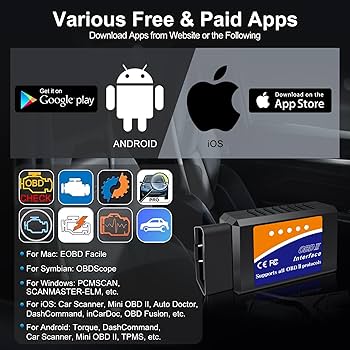
Not all OBD2 scanners work with every PC. Check if your computer’s operating system supports the scanner.
| PC Operating System | Common Compatibility | Notes |
| Windows 10/11 | Most WiFi and Bluetooth scanners | Wide support and easy setup |
| MacOS | Some WiFi scanners | Bluetooth support varies |
| Linux | Limited scanners | Check driver availability |
Key Features To Look For
Good scanners have features that help you get accurate and useful data quickly.
- Easy connection to your PC with clear instructions
- Support for many car makes and models
- Real-time data display and error code reading
- Ability to clear error codes after fixing issues
- Software updates to keep up with new car models
Credit: www.amazon.ca
Preparing Your Pc For Connection
Connecting your PC to a WiFi OBD2 scanner needs some preparation. You must set up your PC to ensure smooth communication.
This guide covers checking WiFi settings, installing drivers, and adjusting firewall rules for a safe connection.
Checking Wifi Settings
Make sure your PC’s WiFi is turned on and working properly. Connect to the WiFi network that your OBD2 scanner will use.
- Open your PC’s network settings.
- Check if WiFi is enabled.
- Find and connect to the scanner’s WiFi network.
- Confirm you have internet access if needed.
Installing Necessary Drivers
Your PC needs the correct drivers to communicate with the OBD2 scanner. Install the drivers that came with the device or download them from the manufacturer’s website.
| Driver Type | Purpose |
| WiFi Adapter Driver | Connects PC to scanner’s WiFi |
| OBD2 Communication Driver | Allows data exchange with the scanner |
| USB Driver (if needed) | Supports wired connection option |
Configuring Firewall And Security
Firewalls can block your PC from connecting to the scanner. Adjust settings to allow the scanner app through your firewall.
Use this checklist to configure your firewall:
- Open Windows Firewall settings.
- Find the list of allowed apps.
- Add your OBD2 scanner software if not listed.
- Allow both private and public network access.
- Save changes and restart your PC if needed.
Connecting The Obd2 Scanner To Wifi
Connecting your OBD2 scanner to WiFi allows easy data transfer and updates. This guide will help you connect your device quickly and safely.
Follow these simple steps to power the scanner, find its WiFi network, and enter your WiFi credentials.
Powering The Scanner
First, plug the OBD2 scanner into your vehicle’s OBD port. The scanner gets power directly from the car battery. Make sure your car ignition is on to supply power.
Check the scanner’s LED lights to confirm it is powered on and ready to connect.
Accessing Scanner Wifi Network
Turn on the WiFi on your smartphone or PC. Look for the scanner’s WiFi network in the available connections list. It usually has a name like “OBD2_Scanner_XXXX”.
- Open your device’s WiFi settings.
- Find the scanner’s network name.
- Select the network to connect.
- Wait for the connection to establish.
Entering Network Credentials
After connecting to the scanner’s WiFi, open your browser. Enter the scanner’s IP address shown in the manual. You will see a login page to enter your home WiFi credentials.
| Field | Description |
| SSID | Your home WiFi network name |
| Password | Your home WiFi password |
| Save | Button to save and apply settings |
Fill in the SSID and password carefully. Click “Save” to let the scanner connect to your home WiFi. The device will restart and connect automatically.

Credit: www.amazon.ca
Linking Your Pc To The Scanner Network
Connecting your PC to a WiFi OBD2 scanner lets you read vehicle data easily. This guide helps you link your PC to the scanner network.
Follow simple steps to find the scanner’s WiFi, connect securely, and fix common issues.
Locating The Scanner Wifi On Pc
Turn on your OBD2 scanner. It will broadcast a WiFi signal. Use your PC’s WiFi settings to find the scanner network.
The scanner’s WiFi name usually has “OBD” or the device model in it. Check your scanner manual for the exact network name.
Establishing A Secure Connection
Select the scanner WiFi network on your PC. Enter the password if asked. The password is often on the scanner or in the manual.
Once connected, your PC can communicate with the scanner. This connection lets your software read vehicle data safely.
- Turn off other WiFi networks to avoid interference
- Use the correct password shown with the scanner
- Keep the scanner close to your PC for a strong signal
Troubleshooting Connection Issues
If your PC does not see the scanner WiFi, check that the scanner is powered on. Restart the scanner if needed.
Weak signals or wrong passwords cause connection problems. Try moving closer and re-enter the password carefully.
- Restart your PC’s WiFi adapter
- Forget the scanner network and reconnect
- Check for software updates on your PC and scanner
- Reset the scanner to factory settings if needed
Using Diagnostic Software
Connecting your PC to a WiFi OBD2 scanner lets you check your vehicle’s health. Diagnostic software helps read and clear error codes easily.
This software works with the scanner to show real-time data. It makes car diagnostics simple and clear for users.
Installing Compatible Software
Choose software that works with your WiFi OBD2 scanner and your PC’s operating system. Check the software’s official website for compatibility details.
Download the software from a trusted source. Follow the installation steps carefully to avoid errors during setup.
- Check scanner model compatibility
- Download software from official site
- Follow on-screen installation instructions
- Restart PC after installation if needed
Configuring Software For Wifi Scanner
Open the installed software and find the settings or connection menu. Select WiFi as the connection type to pair with your scanner.
Enter the WiFi scanner’s network name and password if required. Make sure your PC connects to the same network as the scanner.
- Open software settings
- Choose WiFi connection
- Enter scanner’s WiFi details
- Confirm connection is active
Running Initial Diagnostics
After connecting, start the diagnostic scan in the software. The program will communicate with your vehicle’s OBD2 system.
Review the error codes and live data on screen. Use the software tools to clear codes or save reports for future use.
- Start a new scan in the software
- View live data and error codes
- Clear codes if needed
- Save or print diagnostic reports

Credit: www.amazon.ca
Optimizing Connection For Fast Diagnostics
Connecting your PC to a WiFi OBD2 scanner can speed up car diagnostics. A strong connection ensures quick data transfers.
Here are some tips to improve your connection for faster diagnostics.
Improving Signal Strength
A strong WiFi signal is crucial for a fast connection. Place your PC closer to the OBD2 scanner for better signal.
Remove any barriers like walls or large furniture that might block the signal.
- Use a WiFi extender if the signal is weak
- Keep the OBD2 scanner and PC in the same room
- Place devices on a raised surface for better reception
Avoiding Interference
Interference can slow down your connection. Turn off other devices using the same WiFi network.
Microwaves, cordless phones, and other electronics can cause interference.
- Use a dual-band router to separate devices
- Choose a WiFi channel with less traffic
- Keep electronics away from the WiFi router
Regular Firmware Updates
Updating firmware can enhance your scanner’s performance. Check for updates regularly and install them.
Manufacturers release updates to fix bugs and improve connection speeds.
- Visit the manufacturer’s website for updates
- Enable automatic updates if available
- Follow instructions carefully when updating
Common Problems And Fixes
Connecting your PC to a WiFi OBD2 scanner can sometimes be challenging. Here, we address common issues and how to fix them.
These solutions will help you maintain a stable connection and improve data transfer speed between your devices.
Connection Dropouts
Frequent connection dropouts can disrupt the data flow between your PC and OBD2 scanner.
| Problem | Solution |
| Weak WiFi Signal | Move closer to the router |
| Interference | Minimize other electronic devices nearby |
| Software Glitch | Restart the OBD2 scanner and PC |
Scanner Not Detected
If your PC does not detect the scanner, it could be due to various reasons.
- Ensure the scanner is powered on
- Check that the WiFi is enabled on your PC
- Update the scanner’s firmware to the latest version
Slow Data Transfer
Slow data transfer can make diagnostics take longer than necessary.
- Close unnecessary applications on your PC.
- Ensure your WiFi network is not overloaded with other devices.
- Use a direct connection if possible.
Frequently Asked Questions
How To Connect Pc To Wifi Obd2 Scanner?
To connect your PC to a WiFi OBD2 scanner, enable WiFi on the scanner. Then, find its network on your PC’s WiFi settings and connect. Use compatible software to communicate with the scanner for vehicle diagnostics.
What Software Works With Wifi Obd2 Scanners On Pc?
Popular software like Torque, ScanMaster, and OBD Auto Doctor support WiFi OBD2 scanners on PCs. Choose software compatible with your scanner model. Install it to read vehicle data and perform diagnostics easily.
Can I Use Wifi Obd2 Scanner Without Internet On Pc?
Yes, WiFi OBD2 scanners create a direct wireless link between your PC and vehicle. No internet connection is required. This allows real-time data streaming and diagnostics without any external network.
Is Wifi Or Bluetooth Better For Obd2 Pc Connection?
WiFi OBD2 scanners offer faster data transfer and longer range than Bluetooth. WiFi also allows multiple device connections simultaneously. Choose WiFi if you need stable and quick PC vehicle diagnostics.
Conclusion
Connecting your PC to a WiFi OBD2 scanner makes car diagnostics easy. You can check engine data and fault codes quickly. No need for complicated wires or setups. Just follow simple steps to connect and start scanning. This saves time and helps you understand your vehicle better.
Stay informed and keep your car running smoothly. Using WiFi OBD2 scanners with your PC is a smart choice for all car owners. Try it today and see the difference yourself.